
SOP on Revised Procedure of HO Budget Allocation_Re-Allocation and HO Budget Reports.pdf
Budget
21 Apr 2026
Budget SOP No. 03: Revised Procedure for HO Budget Allocation and Reallocation between DO and HO and Modified Budget Reports |
|---|
Standard Operating Procedure APT Revised Procedure for HO Budget Allocation and Reallocation between DO and HO and Modified Budget Reports (DO and HO level) INDIA POST – Advance Postal Technology Page 1 of 26 |
Budget SOP No. 03: Revised Procedure for HO Budget Allocation and Reallocation between DO and HO and Modified Budget Reports ABBREVIATIONS
| Sl. No. | Abbreviation | Description |
|---|---|---|
| 1 | DoP | Department of Posts |
| 2 | APT | Advance Postal Technology |
| 3 | HO | Head Office |
| 4 | DO | Division Office |
| 5 | CEPT | Centre for Excellence in Postal Technology |
| 6 | HoA | Head of Account |
INDIA POST – Advance Postal Technology Page 2 of 26 |
|---|
Budget SOP No. 03: Revised Procedure for HO Budget Allocation and Reallocation between DO and HO and Modified Budget Reports |
|---|
| Standard Operation Procedure: Area Budget SOP No 3 Module Budget Module Dated 21.04.2026 SOP Title Revised Procedure for HO Budget Allocation and Reallocation between DO and HO and Modified Budget Reports (DO and HO level) INDIA POST – Advance Postal Technology Page 3 of 26 |
Budget SOP No. 03: Revised Procedure for HO Budget Allocation and Reallocation between DO and HO and Modified Budget Reports |
|---|
| 1 Back-ground and Introduction Upon the introduction of the APT, Budget Allocation to HOs was carried out by DOs in the form of utilization percentages. It has been observed that DO users were experiencing difficulties in configuring HO fund utilization through percentage-based inputs. In several cases, the required percentages involved decimal values extending up to 7–8 places, making the configuration process complex and prone to inaccuracies. Consequently, DO users were often unable to configure or update HO fund utilization in accordance with approved values. To address these challenges and enhance operational ease, CEPT has revised the functionality within the Budget Module. The earlier mechanism of configuring HO fund utilization through percentages has been replaced with a system of direct fund allocation and reallocation. Under the revised procedure, DOs can allocate funds to HOs through fund allocation and reallocation options. Additionally, DOs can reallocate funds between HOs within their jurisdiction, as well as reallocate funds from HOs to DO. Further, a requirement was identified at the HO level for access to detailed budget reports, including fund allocation, consumption, liabilities, reallocation, and scheme-wise and non scheme-wise HoA data. To address this requirement, CEPT has extended certain Budget Report functionalities to HO users. The reporting interface has also been enhanced and reorganized into logical categories. For instances, the ‘Fund Allocation’ category includes reports such as Fund Detailed, Consolidation, Balance, Allocation Status, and Re-appropriation, while the ‘Reallocation’ category provides details of reallocated fund movements between offices. INDIA POST – Advance Postal Technology Page 4 of 26 |
Budget SOP No. 03: Revised Procedure for HO Budget Allocation and Reallocation between DO and HO and Modified Budget Reports |
|---|
| 2 User Login Production / Live URL: https://app.indiapost.gov.in/employeeportal After entering URL in the address bar of any recommended web browser, login screen as shown above will appear. Enter the Employee ID and Password. Click ‘Sign In’. Upon clicking ‘Sign In’, the user is required to log in to the application using one of the following authentication methods: 1. TOTP Method 2. Mobile OTP Method. INDIA POST – Advance Postal Technology Page 5 of 26 |


Budget SOP No. 03: Revised Procedure for HO Budget Allocation and Reallocation between DO and HO and Modified Budget Reports |
|---|
| 3 Roles Required 3.1 DO Level • Budget Receiving User: The user with the ‘Budget Receiving User’ role can allot, reallot, and surrender funds, create RE, BE, and FG proposals, perform MEP upload, carry out reconciliation of Treasury–Budget data and View-Download Reports. • Budget Allotting User: The user with the ‘Budget Allotting User’ role will verify allot, reallot, and surrender funds, created RE, BE, and FG proposals, MEP upload verification, carry out reconciliation of Treasury–Budget data and View-Download Reports. 3.2 HO Level • Budget Receiving User: At present, the role ‘Budget Receiving User’ at HO is restricted to report access. INDIA POST – Advance Postal Technology Page 6 of 26 |
Budget SOP No. 03: Revised Procedure for HO Budget Allocation and Reallocation between DO and HO and Modified Budget Reports |
|---|
| 4 Fund Allotment to the HO 4.1 Fund Allotment From FY 2026–27 onwards, fund allotment to HOs by DOs shall be carried out through the Fund Allocation option, and the previously used Fund Utilization sub-card shall stand disabled. Users shall configure fund allocation to HOs through the Budget Module – Fund Allotment sub-card. Click on ‘Budget Module’ card. Click on ‘Fund Allotment’ sub-card. Click on ‘Fund Allocation’ option. INDIA POST – Advance Postal Technology Page 7 of 26 |


Budget SOP No. 03: Revised Procedure for HO Budget Allocation and Reallocation between DO and HO and Modified Budget Reports |
|---|
The Fund Allocation screen shall be displayed, containing options such as ‘View’ and ‘Download’ of the sample template, based on which the user shall prepare the fund allotment data of the respective HO for upload. Click on ‘View’ button to view the sample upload format. Upon clicking ‘View’, the sample template will be displayed as shown above. Click on ‘Close’ button, to close the modal. Click on ‘Download’ button to save the Template in the local system. INDIA POST – Advance Postal Technology Page 8 of 26 |


Budget SOP No. 03: Revised Procedure for HO Budget Allocation and Reallocation between DO and HO and Modified Budget Reports |
|---|
Upon clicking the ‘Download’ button, the application will prompt the user to save the template at the desired location. Save the template (excel) and fill the data with HO Office ID, Fund Allotting HoA and Allotting Amount and save the excel file. (Note : Please remove the headers before uploading) Select the ‘Financial Year’ and appropriate ‘Budget Type’. Click on ‘Choose File’ to select the excel file containing duly filled fund allotment data. Click on ‘Validate’ button. INDIA POST – Advance Postal Technology Page 9 of 26 |


Budget SOP No. 03: Revised Procedure for HO Budget Allocation and Reallocation between DO and HO and Modified Budget Reports |
|---|
Upon clicking the ‘Validate’ button, a ‘Validation Successful’ message will be displayed, and the application will present the fund allotment data, as provided in the Excel file, in a tabulated form with details such as ‘To Office ID’ (office to which funds are allotted), ‘To Office Name’, ‘Head of Account’, ‘Head of Account Description’, and ‘Amount’ (funds being allotted to the office). Click on ‘Submit’ button.INDIA POST – Advance Postal Technology Page 10 of 26 |


Budget SOP No. 03: Revised Procedure for HO Budget Allocation and Reallocation between DO and HO and Modified Budget Reports |
|---|
Upon clicking the ‘Submit’ button, the message ‘Fund allocation has been posted successfully and forwarded to Supervisor Approval’ will be displayed, and the record will be submitted to the ‘Budget Allotting User’ for approval. 4.2 Fund Allotment Verification Fund allotment carried out by the ‘Budget Receiving User’ will be verified or approved by the ‘Budget Allotting User’. This verification will be performed through the Budget Module – Fund Allocation – Fund Allocation Verification option. Click on the ‘Fund Allocation Verification’ option. Select the ‘Financial Year’ and appropriate ‘Budget Type’. Click on ‘Submit’ button. INDIA POST – Advance Postal Technology Page 11 of 26 |


Budget SOP No. 03: Revised Procedure for HO Budget Allocation and Reallocation between DO and HO and Modified Budget Reports |
|---|
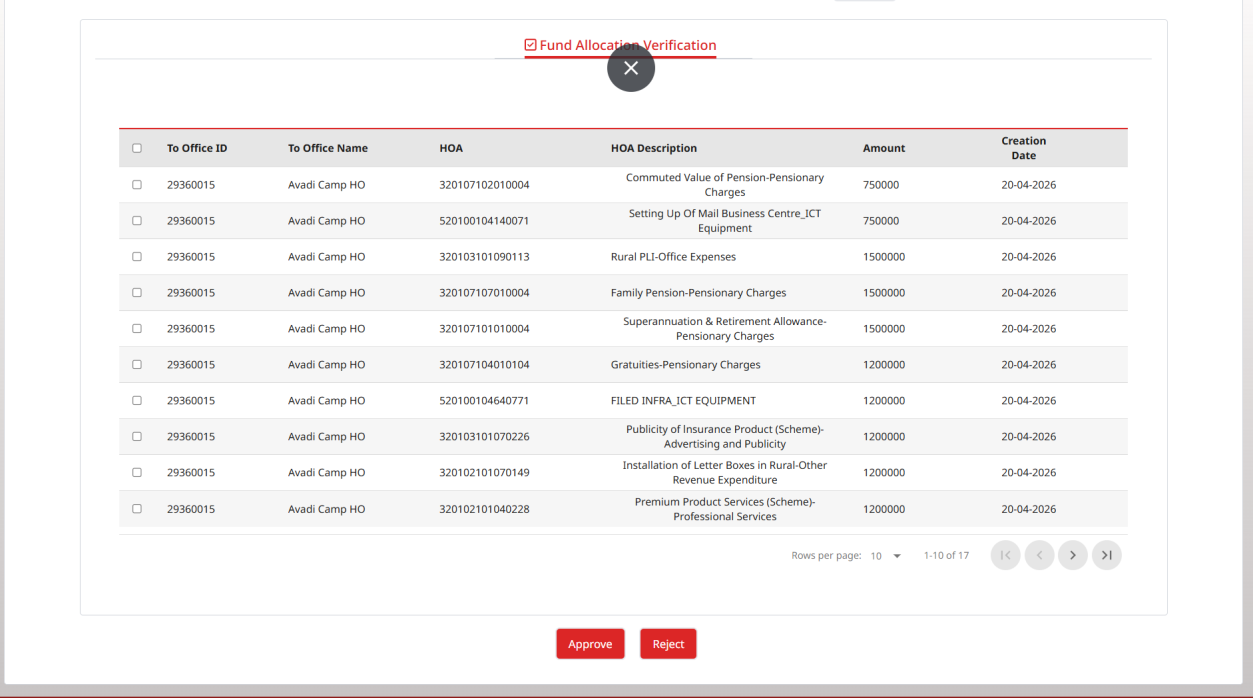
| Upon clicking the ‘Submit’ button, the application displays the Budget Allotted data. The number of rows to be approved or rejected shall be selected prior to approving or rejecting the allotment record. INDIA POST – Advance Postal Technology Page 12 of 26 |

Budget SOP No. 03: Revised Procedure for HO Budget Allocation and Reallocation between DO and HO and Modified Budget Reports |
|---|
The initial screen displays only 10 records. If more than 10 records are available for approval, the user may navigate using the forward arrow to view additional records, or modify the display by selecting a higher value in the ‘Rows per page’ drop-down. Click on the checkbox adjacent to the ‘To Office ID’ column to select all rows, or select individual rows by clicking the respective checkboxes. Click on the ‘Approve’ button to verify and approve the records.INDIA POST – Advance Postal Technology Page 13 of 26 |


Budget SOP No. 03: Revised Procedure for HO Budget Allocation and Reallocation between DO and HO and Modified Budget Reports |
|---|
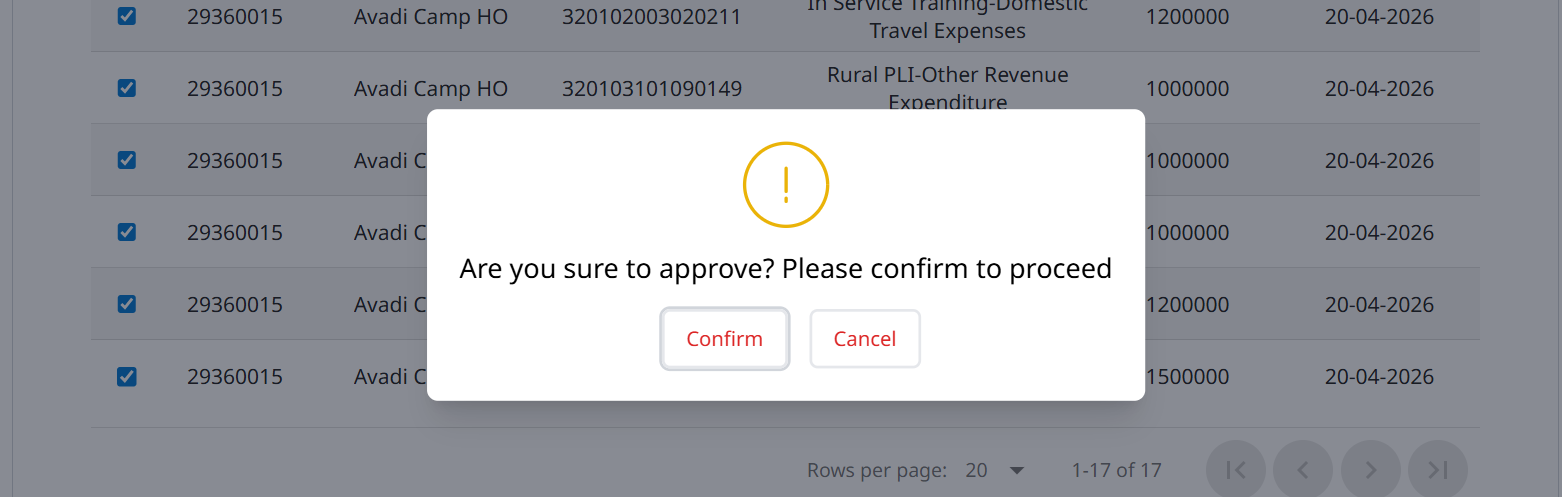
Upon clicking the ‘Approve’ button, the application shall prompt a confirmation message to proceed with the approval. Click on the ‘Confirm’ button. Upon clicking the ‘Confirm’ button, ‘Data Verified Successfully’ message will be displayed. 5 Fund Re-Allocation DO/HO to HO and vice-versa Fund Re-allocation denotes a process wherein a DO reallocates funds between HOs, including from DO to HO and from HO to DO, after initial allotment to the respective HO has been made and approved through the Fund Allotment option. 5.1 Fund Re-Allocation from DO to HO by DO In this scenario, re-allocation of funds from DO to HO by the DO is explained. Prior to initiating re-allocation, funds must be initially allotted to the HO through the Fund Allotment option. Click on ‘Fund Reallocation(Office-Wise)’ option. INDIA POST – Advance Postal Technology Page 14 of 26 |

Budget SOP No. 03: Revised Procedure for HO Budget Allocation and Reallocation between DO and HO and Modified Budget Reports |
|---|
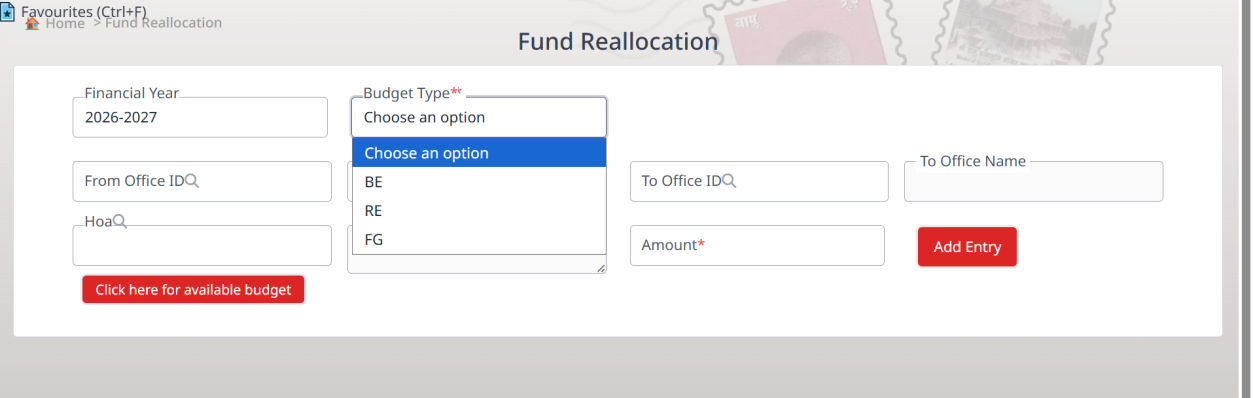
| Select the ‘Financial Year’ and appropriate ‘Budget Type’ Enter the ‘From Office ID’ as Division Office ID. Enter the ‘To Office ID’ Enter the ‘HoA’. INDIA POST – Advance Postal Technology Page 15 of 26 |


Budget SOP No. 03: Revised Procedure for HO Budget Allocation and Reallocation between DO and HO and Modified Budget Reports |
|---|
| Click on ‘Click here for available budget’ button. The application displays the ‘Available Budget’ as available in the ‘From Office’. Enter the ‘Amount’ and Click on ‘Add Entry’ button. Upon clicking the ‘Add Entry’ button, the record will be added in the tabulated form. Click on ‘Submit’ button. Upon clicking the ‘Submit’ button, the ‘Reallocation posted and submitted to the supervisor for approval’ message will be displayed. INDIA POST – Advance Postal Technology Page 16 of 26 |


Budget SOP No. 03: Revised Procedure for HO Budget Allocation and Reallocation between DO and HO and Modified Budget Reports |
|---|
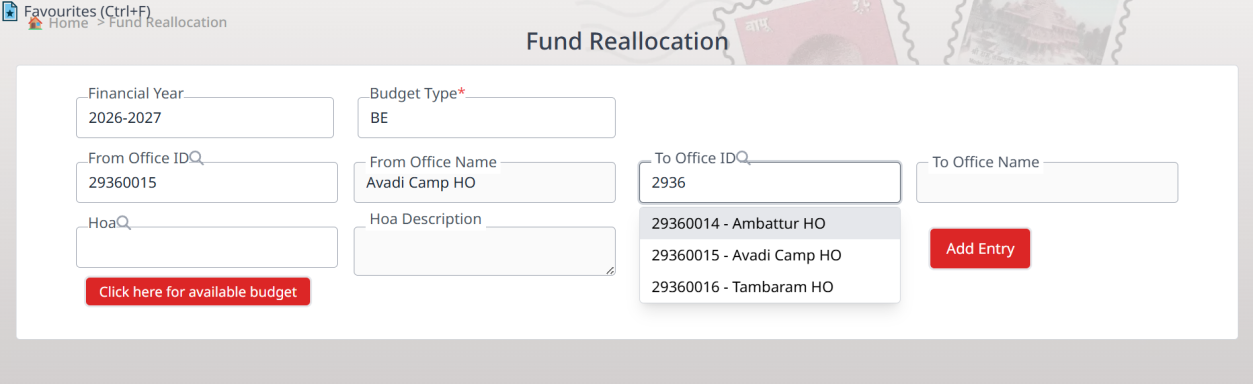
| 5.2 Fund Re-allocation from HO to HO by DO In this scenario, re-allocation of funds from HO to HO by the DO is explained. Prior to initiating re-allocation, funds must be initially allotted to the HOs through the Fund Allotment option. Select the ‘Financial Year’, appropriate ‘Budget Type’. Enter the ‘From Office ID’. Enter the ‘To Office’ ID. Enter the ‘HoA’. INDIA POST – Advance Postal Technology Page 17 of 26 |


Budget SOP No. 03: Revised Procedure for HO Budget Allocation and Reallocation between DO and HO and Modified Budget Reports |
|---|
| Enter the ‘Amount’ and Click on ‘Add Entry’ button. Upon clicking the ‘Add Entry’ button, the record will be added in the tabulated form. Click on ‘Submit’ button. Upon clicking the ‘Submit’ button, the ‘Reallocation posted and submitted to the supervisor for approval’ message will be displayed. INDIA POST – Advance Postal Technology Page 18 of 26 |


Budget SOP No. 03: Revised Procedure for HO Budget Allocation and Reallocation between DO and HO and Modified Budget Reports |
|---|
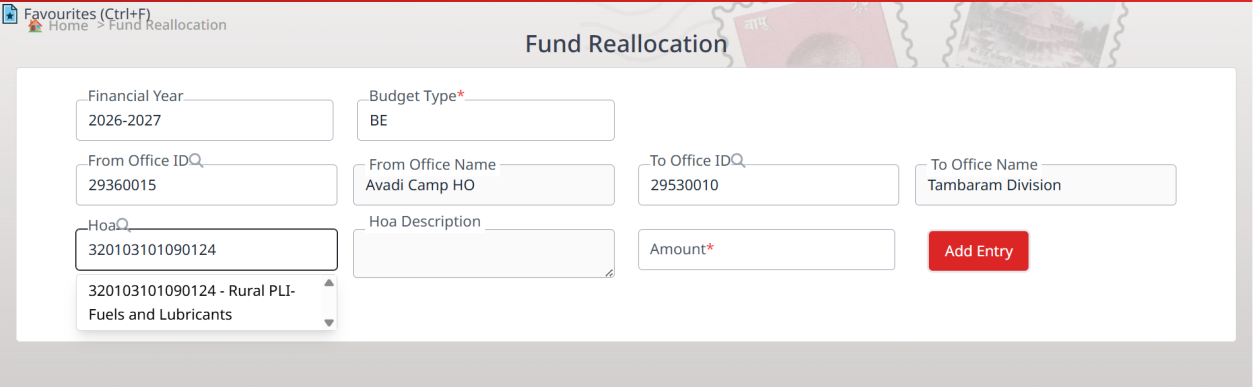
| 5.3 Fund Re-allocation from HO to DO by DO In this scenario, re-allocation of funds from HO to DO by the DO is explained. Prior to initiating re-allocation, funds must be initially allotted to the HO through the Fund Allotment option. Select the ‘Financial Year’, appropriate ‘Budget Type’. Enter the ‘From Office ID’. Enter the ‘To Office ID’ as Division Office ID. Enter the ‘HoA’. INDIA POST – Advance Postal Technology Page 19 of 26 |


Budget SOP No. 03: Revised Procedure for HO Budget Allocation and Reallocation between DO and HO and Modified Budget Reports |
|---|
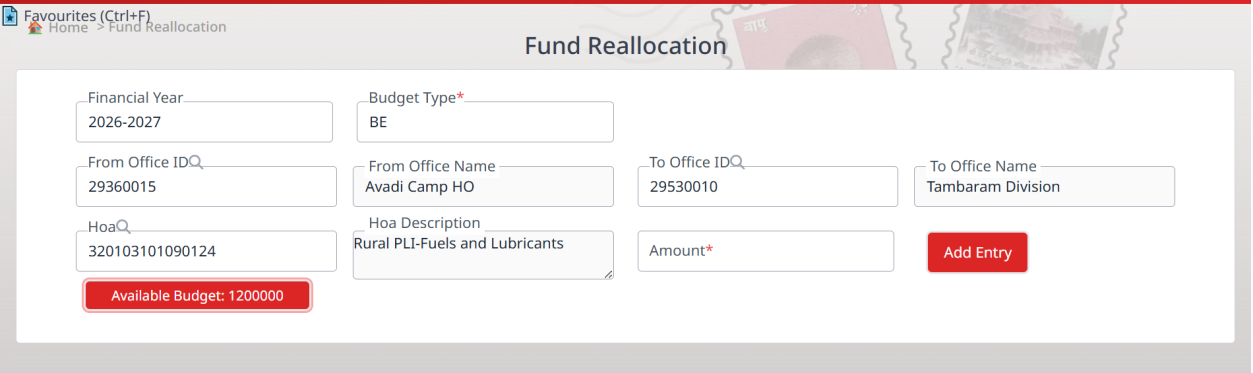
| Enter the ‘Amount’ and Click on ‘Add Entry’ button. Upon clicking the ‘Add Entry’ button, the record will be added in the tabulated form. Click on ‘Submit’ button. Upon clicking the ‘Submit’ button, the ‘Reallocation posted and submitted to the supervisor for approval’ message will be displayed. 5.4 Fund Re-allocation Verification Fund Re-allocation carried out by the user ‘Budget Receiving User’ must be verified by the user ‘Budget Allotting User’. Click on ‘Fund Reallocation Verification’ option. INDIA POST – Advance Postal Technology Page 20 of 26 |


Budget SOP No. 03: Revised Procedure for HO Budget Allocation and Reallocation between DO and HO and Modified Budget Reports |
|---|
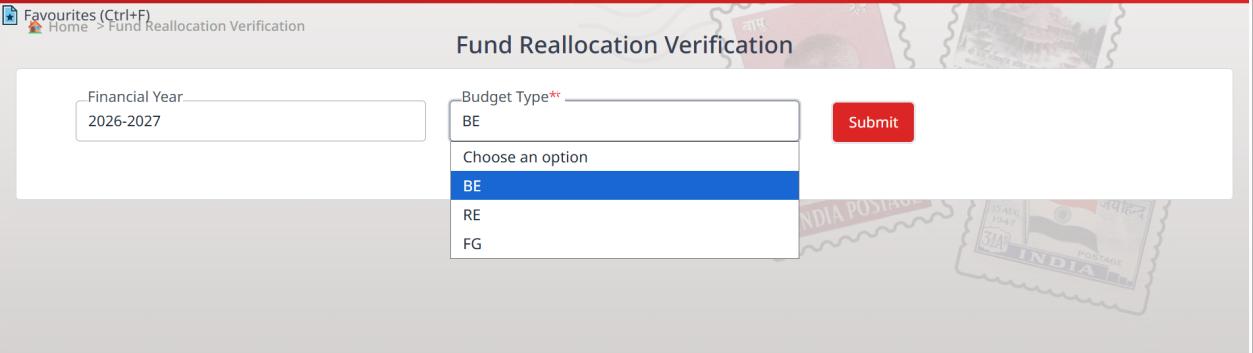
| Select the ‘Financial Year’ Select the appropriate ‘Budget Type’ and click on ‘Submit’ button. Upon clicking the ‘Submit’ button, the application displays the records that need to be verified. INDIA POST – Advance Postal Technology Page 21 of 26 |


Budget SOP No. 03: Revised Procedure for HO Budget Allocation and Reallocation between DO and HO and Modified Budget Reports |
|---|
Click on the checkbox adjacent to the ‘Type’ column to select all rows, or select individual rows by clicking the respective checkboxes. Click on the ‘Approve’ button to verify and approve the records. Upon clicking the ‘Approve button’, ‘Data Approved Successfully’ message will be displayed. INDIA POST – Advance Postal Technology Page 22 of 26 |


Budget SOP No. 03: Revised Procedure for HO Budget Allocation and Reallocation between DO and HO and Modified Budget Reports |
|---|
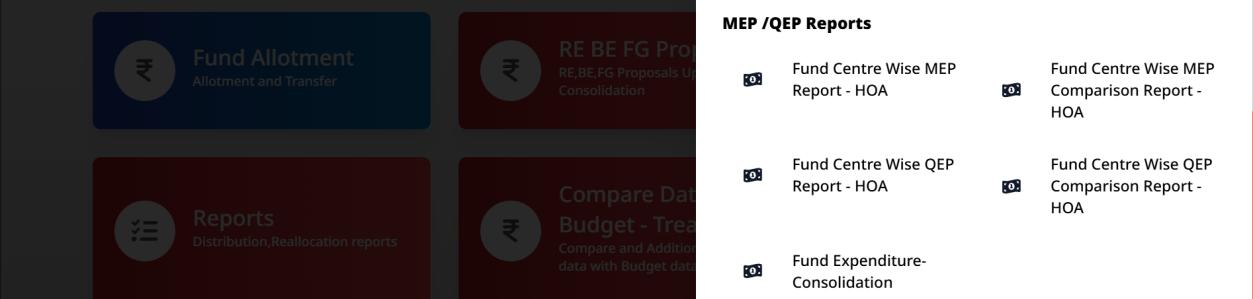
| 6 Reports at Administrative Office level The reporting interface has been enhanced and reorganized into logical categories. For instance, the ‘Fund Allocation’ category includes reports such as Fund Detailed, Consolidation, Balance, Allocation Status, and Re-appropriation, while the ‘Reallocation’ category provides details of reallocated fund movements between offices. Each category and the reports configured under it are explained below. • Fund Detailed Report – Displays transaction-level details of fund allocation and expenditure. • Fund Consolidation Report – Presents consolidated fund data across offices or categories. • Fund Consumption Detailed Report – Shows detailed records of fund utilization. • Fund Balance Report – Indicates the available fund balance. • Schemewise Fund Utilization Report – Displays fund allocation and utilization scheme wise. • Fund Surrender Report – Provides details of funds surrendered by offices. • Fund Re-appropriation Report – Shows re-appropriation of funds between Heads of Account. • Allocation Status Report – Displays the status of fund allocation records. • HO Wise Fund Utilization Report – Provides fund utilization details at HO level. • HOA Wise Fund Report – Displays fund data classified by Head of Account. • Dates Configuration Report – Shows configured dates related to budget processes.INDIA POST – Advance Postal Technology Page 23 of 26 |


Budget SOP No. 03: Revised Procedure for HO Budget Allocation and Reallocation between DO and HO and Modified Budget Reports |
|---|
| • Fund Reallocation Report – From Office – Displays details of funds reallocated from an office. • Fund Reallocation Report – To Office – Displays details of funds received through reallocation. • RE/BE Detailed Report (Office-wise) – Displays Revised Estimates and Budget Estimates details office-wise. • FG Detailed Report (Office-wise) – Provides Final Grant details office-wise. • Fund Centre Wise MEP Report – HOA – Displays MEP data mapped to fund centre and HOA. • Fund Centre Wise MEP Comparison Report – HOA – Provides comparative MEP data across fund centre and HOA. • Fund Centre Wise QEP Report – HOA – Displays QEP data mapped to fund centre and HOA. • Fund Centre Wise QEP Comparison Report – HOA – Provides comparative QEP data across fund centre and HOA. • Fund Expenditure – Consolidation – Presents consolidated expenditure data across fund centre. • PCD/PED Fund Detailed Report – Displays detailed fund data for PCD/PED Offices. • PCD/PED Fund Allocation Report – Shows fund allocation details for PCD/PED Offices. INDIA POST – Advance Postal Technology Page 24 of 26 |


Budget SOP No. 03: Revised Procedure for HO Budget Allocation and Reallocation between DO and HO and Modified Budget Reports |
|---|
| 7 Reports at HO/HRO level For DDO-level users with the role ‘Budget Receiving User’, Budget Reports have also been enabled. Click on ‘Budget Module’ card. Click on ‘Reports’ sub-card The various Reports available under the Reports sub-card are listed below: • HO Wise Fund Report Displays fund allocation, utilization, and balance at the Head Office (HO) level. • Fund Detailed Report Contains transaction-level details of fund allocation and expenditure. • Fund Consolidation Report Presents combined fund data across multiple offices or schemes in a single view. INDIA POST – Advance Postal Technology Page 25 of 26 |


Budget SOP No. 03: Revised Procedure for HO Budget Allocation and Reallocation between DO and HO and Modified Budget Reports |
|---|
| • Fund Consumption Detailed Report Shows detailed records of fund consumption, including category-wise or activity-wise expenditure. • Fund Balance Report Indicates the available (unutilized) fund balance at a specific point in time. • Scheme wise Fund Utilization Report Displays allocation and utilization of funds for each scheme. • Fund Reallocation Report To Office Records transfer and reallocation of funds between offices. • HOA Wise Fund Report Provides fund details classified under respective Heads of Account (HOA). *** End of the Document*** INDIA POST – Advance Postal Technology Page 26 of 26 |
Discussion
0 notes
Ask a question or add a note…