
SOP for Bulk Reconciliation of Bank Credits at PAO Level.pdf
IT 2.0
13 Mar 2026
BRS SOP No. 3 Bulk Reconciliation of Bank Credits at PAO level dated 04.03.2026 |
|---|
Standard Operating Procedure APT Bulk Reconciliation of Bank Credits at PAO Level INDIA POST – Advance Postal Technology Page 1 of 14 |
BRS SOP No. 3 Bulk Reconciliation of Bank Credits at PAO level dated 04.03.2026 |
|---|
ABBREVIATIONS Sl. No. Abbreviation Description 1 APT Advance Postal Technology 2 DoP Department of Posts 3 TOTP Time Based One Time Password 4 OTP One Time Password 5 SOP Standard Operating Procedure 6 DDO Drawing and Disbursing Officer 7 PAO Postal Accounts Office INDIA POST – Advance Postal Technology Page 2 of 14 |
BRS SOP No. 3 Bulk Reconciliation of Bank Credits at PAO level dated 04.03.2026 |
|---|
| Standard Operation Procedure: Area BRS SOP No 3 Module Bank Module Dated 04.03.2026 SOP Title Bulk Reconciliation of Bank Credits at PAO level INDIA POST – Advance Postal Technology Page 3 of 14 |
BRS SOP No. 3 Bulk Reconciliation of Bank Credits at PAO level dated 04.03.2026 |
|---|
| 1 Introduction This SOP defines the process for carrying out Bulk Reconciliation of Remittance Schedules with the Remittance Bank Scroll at the PAO level in the Bank Module of APT. Example: Suppose a single remittance amount is sent to the bank either through online transfer or cheque, and the bank subsequently disburses the amount to multiple beneficiary accounts. In such cases, the Post Office (PO) schedule entry will be a single entry, whereas multiple entries will appear in the bank scroll. Due to this mismatch in the number and nature of transactions, automatic reconciliation is notpossible. Therefore, in such scenarios, the process of bulk reconciliation needs to be followed to reconcile the transactions appropriately. Bank Reconciliation in APT is performed at two stages: 1. DDO Level 2. PAO Level The Bank Reconciliation completed by the DDO is subsequently verified and carried out again by the PAO, referred to as Focal Branch Transaction Reconciliation. In certain cases, a DDO may receive multiple bank credits for the same purpose. Instead of posting individual schedule entries against each bank credit, the DDO may consolidate these multiple credits into a single entry (consolidated amount) in the Remittance Schedule and reconcile them using the Bulk Reconciliation option, which was recently introduced at the DDO level. Since each consolidated schedule entry posted by the DDO is also available to the PAO during the second level of reconciliation, a similar Bulk Reconciliation facility is required at the PAO level. At the PAO level: • The PAO receives the DDO Bank Scroll in the form of the Focal Branch Bank Scroll. • Each scroll credit must be mapped with the corresponding Postal Schedule. • In cases of one-to-one pairing, reconciliation is straightforward. • However, when multiple scroll credits need to be matched with a single consolidated schedule entry, reconciliation becomes complex. To address this challenge, the Bulk Reconciliation functionality initially provided to the DDO has now been extended to the PAO level. This enables PAO users to reconcile: • Multiple bank/scroll credits with a single schedule, or • Multiple bank/scroll credits with multiple schedules, thereby ensuring smooth and accurate second-level reconciliation. INDIA POST – Advance Postal Technology Page 4 of 14 |
BRS SOP No. 3 Bulk Reconciliation of Bank Credits at PAO level dated 04.03.2026 |
|---|
| 2 User Login Production / Live URL: https://app.indiapost.gov.in/employeeportal After entering URL in the address bar of any recommended web browser, login screen as shown above will appear. Enter the Employee ID and Password. Click ‘Sign In’ Upon clicking ‘Sign In’, the user is required to log in to the application using one of the following authentication methods: 1. TOTP Method 2. Mobile OTP Method. INDIA POST – Advance Postal Technology Page 5 of 14 |


BRS SOP No. 3 Bulk Reconciliation of Bank Credits at PAO level dated 04.03.2026 |
|---|
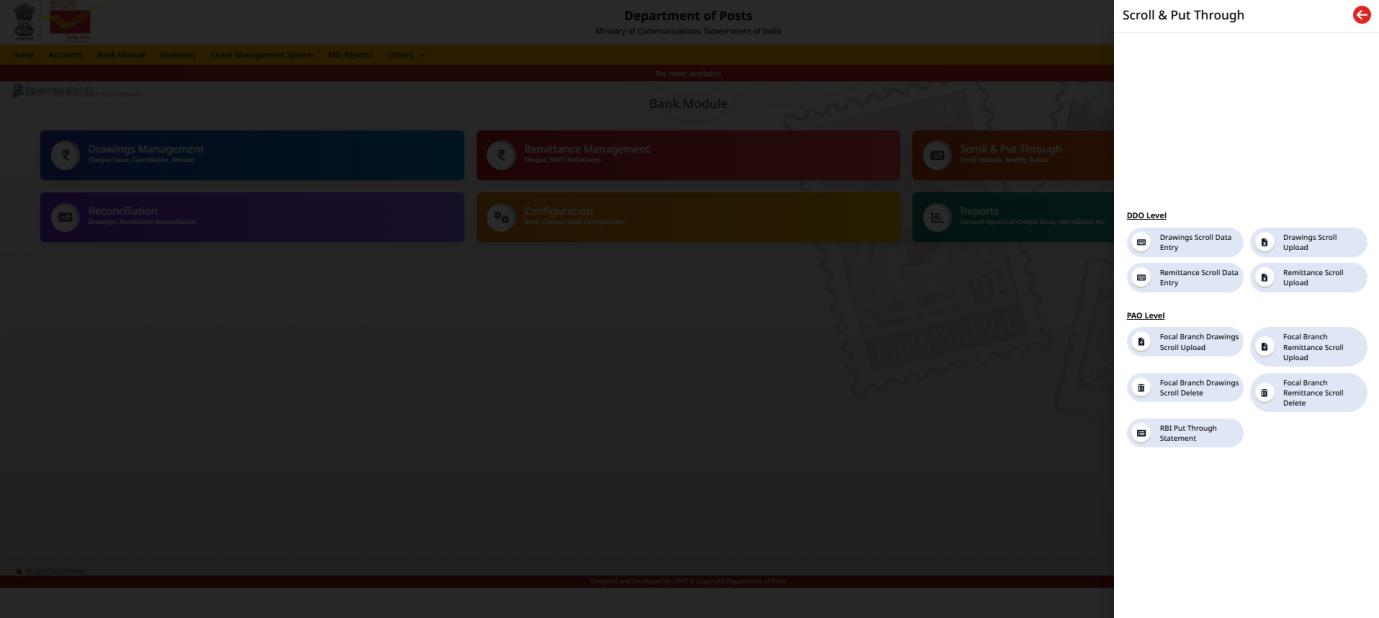
| 3 Focal Branch Remittance Scroll Upload Initially, the DDO Schedule data will be available to the PAO upon selecting the concerned DDO Office ID. These schedules must then be reconciled with the Focal Branch Scroll provided DDO-wise by the concerned bank. To upload the scroll, navigate to Bank Module → Scroll & Put Through sub-card. Click on ‘Scroll & Put Through’ sub-card. Click on ‘Scroll & Put Through’ sub-card Click on ‘Focal Branch Remittance Scroll Upload’ Option INDIA POST – Advance Postal Technology Page 6 of 14 |


BRS SOP No. 3 Bulk Reconciliation of Bank Credits at PAO level dated 04.03.2026 |
|---|
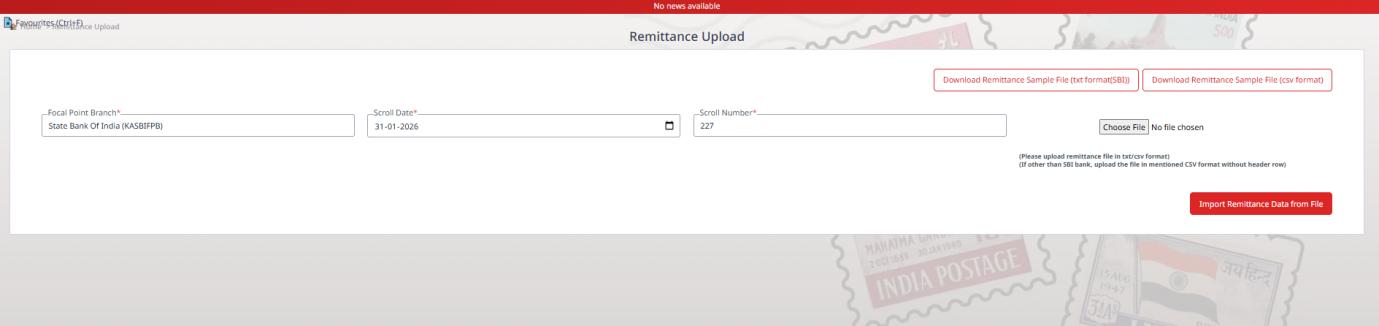
Upon clicking the ‘Focal Branch Remittance Scroll Upload’ Option, the Remittance Upload Screen will be displayed. Select the Bank from ‘Focal Point Branch’. Select the ‘Scroll Date’ Enter the ‘Scroll Number’. Click on the ‘Choose File’ button to select the Bank Scroll downloaded by the PAO, and the fields should be as per the standard template. Select the file and click on the ‘Open’ button. INDIA POST – Advance Postal Technology Page 7 of 14 |


BRS SOP No. 3 Bulk Reconciliation of Bank Credits at PAO level dated 04.03.2026 |
|---|
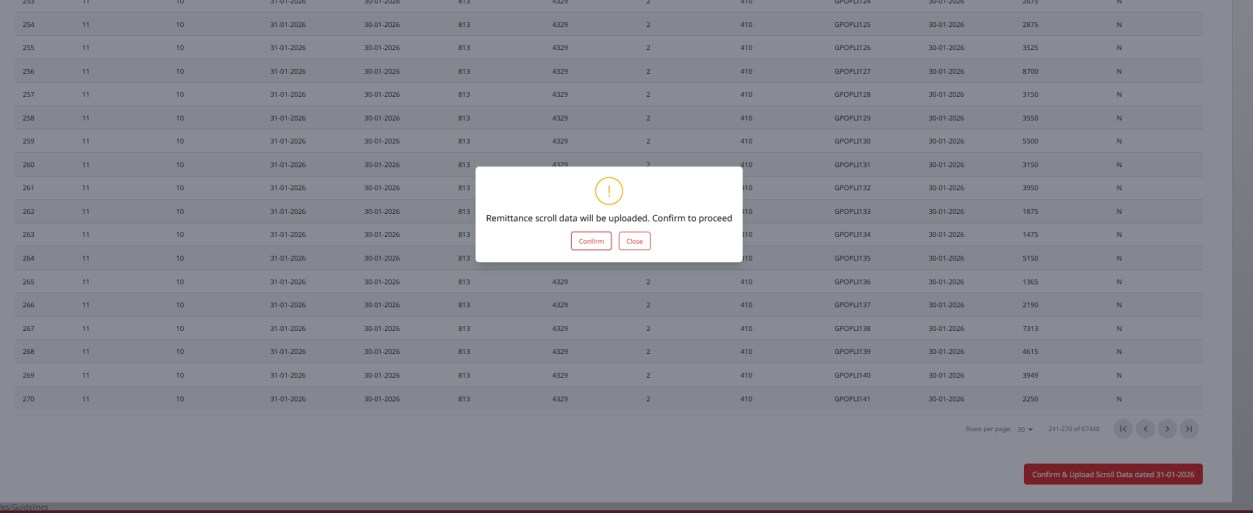
Upon clicking the ‘Open’ button, the selected file is loaded, and the data is displayed in a tabular format, along with the total number of transactions and the total transaction amount. Click on the ‘Confirm & Upload Scroll Data’ button. Upon clicking the ‘Confirm & Upload Scroll Data’ button, the application displays the message and promptsthe user ‘Confirm to Proceed’. Click on the ‘Confirm’ button. Upon clicking the ‘Confirm’ button, the ‘Remittance Data Uploaded’ success message will be displayed. INDIA POST – Advance Postal Technology Page 8 of 14 |


BRS SOP No. 3 Bulk Reconciliation of Bank Credits at PAO level dated 04.03.2026 |
|---|
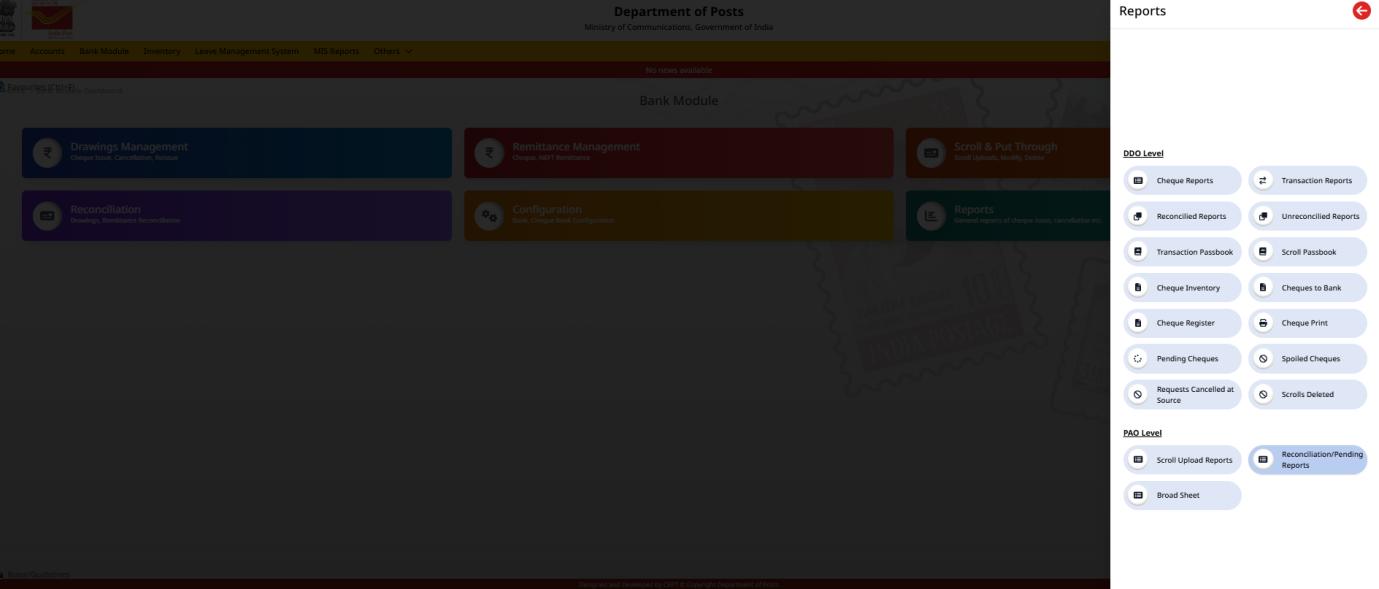
| 4 Reports- Reconciliation Pending Reports The above uploaded scroll should be downloaded from the Bank Module- Reports sub-card. Click on ‘Reconciliation Pending Reports’ Select the ‘DDO’, ‘Trans Type’ and Reconciliation Type as ‘Unreconciled/ Pending’. Select the ‘From Date’, ‘To Date’ and Click on ‘Fetch Report’ button. The Report will be fetched in the tabulated form and Click on ‘Export Excel’ button. INDIA POST – Advance Postal Technology Page 9 of 14 |

BRS SOP No. 3 Bulk Reconciliation of Bank Credits at PAO level dated 04.03.2026 |
|---|
Upon clicking the ‘Export Excel’ button, the data in the tabulated report will be exported to Excel. The exported file will contain the following details: Scroll Date, Uploaded Date, Scroll ID, DDO Code, Reference Number, Cheque/Transaction Date, Transaction Amount, and Trans ID. Please note that when the scroll data is uploaded under the Scrolls & Put Through sub-card, each transaction amount, along with its reference number, is assigned a unique system generated Trans ID. This Trans ID will be available in the report and will also appear in the exported Excel file. The Trans ID and the corresponding Transaction Amount must be copied into a new Excel file and saved in the local system for further processing.Ensure the correctness of the data before proceeding further. 5 Reconciliation After downloading the Reconciliation Pending Report and copying the scroll amounts along with their corresponding Trans IDs into an Excel file and save it to the local system, the next step is to reconcile these scroll amounts with the respective DDO schedules. Click on ‘Reconciliation’ card.INDIA POST – Advance Postal Technology Page 10 of 14 |


BRS SOP No. 3 Bulk Reconciliation of Bank Credits at PAO level dated 04.03.2026 |
|---|
Click on the ‘Bulk Reconciliation’ option available under the PAO level and go through the instructions on the screen Select the ‘Transaction Type’. Select the ‘DDO’. Upon selecting the ‘DDO’, the Office Name will be auto-populated, and the Schedules Data of the Office Selected will be displayed. The Schedule data contains the details such as ‘DDO Office ID’, ‘Cheque Number/Reference Number’, ‘Trans Date’ and the Amount. INDIA POST – Advance Postal Technology Page 11 of 14 |


BRS SOP No. 3 Bulk Reconciliation of Bank Credits at PAO level dated 04.03.2026 |
|---|
The file containing the Transaction Amount and Trans ID, copied from ‘Reports’ → ‘Reconciliation Pending Reports’, must be selected using the ‘Choose File’ button under the ‘Upload Scroll Data’ section. Click on the ‘Choose file’ button.INDIA POST – Advance Postal Technology Page 12 of 14 |


BRS SOP No. 3 Bulk Reconciliation of Bank Credits at PAO level dated 04.03.2026 |
|---|
Upon clicking the ‘Choose File’ button, the total number of Trans IDs and the corresponding total amount will be automatically populated in the ‘No. of Transactions’ and ‘Scroll Total’ fields under the ‘Upload Scroll Data’ section. Note: The Scroll Total must match the Schedule/s Total before proceeding. After verification, click on the ‘Submit & Reconcile’ button to complete the reconciliation process. Upon clicking the ‘Submit & Reconcile’ button, the application displays a confirmation message prompting the user to confirm the action. The user must click on the ‘Confirm’ button to proceed with the reconciliation process. Upon clicking the ‘Confirm’ button, the ‘Transaction Reconciled’ message will be displayed. Please Note:The PAO should take utmost care while reconciling the transactions as the process of reconciliation is irreversible, and once the transaction is reconciled, the same cannot be cancelled or reversed. INDIA POST – Advance Postal Technology Page 13 of 14 |


BRS SOP No. 3 Bulk Reconciliation of Bank Credits at PAO level dated 04.03.2026 |
|---|
| 6 Downloading the Reconciled Reports Upon successful reconciliation of the schedule transactions with the bank scroll, the reconciled data will be made available in report format. The user can download the report by navigating to Bank Module → Reports. Click on ‘Reconciliation/Pending Reports’ option Select the ‘DDO’, ‘Trans Type’, ‘Reconciliation Type – Reconciled’, ‘From Date’, and ‘To Date’, then click on the ‘Fetch Report’ button. Upon clicking ‘Fetch Report’, the application displays the ‘No. of Transactions Reconciled’ based on the selected criteria. ***End of the Document*** INDIA POST – Advance Postal Technology Page 14 of 14 |


Discussion
0 notes
Ask a question or add a note…