
No pay recovery for non postal.pdf
25-01/2022-LI-Pt I/229456/2026
F.no. 25-01/2022-LI
Ministry of Communications
Department of Posts
(Directorate of Postal Life Insurance)
Chanakyapuri P.O. Complex,
New Delhi-110021
Dated: 12-03-2026.
To,
All Heads of Circles,
Sub : Discontinuation of premium payment through Pay-Recovery Book Adjustment for new PLI policies issued to officials of non-postal Central Government Ministries/Departments/Organizations w.e.f. 01.04.2026 – reg.
Madam/Sir,
I am directed to refer to the existing practice of collection of Postal Life Insurance (PLI) premium through pay-recovery book adjustment in respect of officials of non-postal Central Government Ministries/ Departments/Organizations.
2. In this regard, it has been decided that the option of premium payment through pay-recovery book adjustment shall be discontinued for new PLI policies issued to officials of non-postal Central Government Ministries/Departments/Organizations with effect from 01.04.2026.
3. Accordingly, Circles are requested to take necessary action to ensure that no new PLI policies, issued to officials of non-postal Central Government Ministries/Departments/Organizations, are enrolled under the pay-recovery book adjustment mode from 01.04.2026 onwards. Suitable instructions may be issued to all concerned to ensure compliance.
4. It may also be ensured that Inchrges of CPCs address the DDOs linked to the concerned CPCs by email/letter to advise existing policyholders to opt for alternate premium payment channels such as NACH (SI through India Post Payments Bank or Post Office Savings Bank or bank account)/online premium payment channels like customer portal. The process for the purpose is also enclosed herewith as Annexure.
5. This may be treated as most urgent and the compliance may be ensured accordingly.
This issues with the approval of the Competent Authority.
(Kamal Sharma)
DDM-III (PLI)
Copy to:
DPLI Kolkata for information and necessary action.
File No. 25-01/2022-LI-Pt (Computer No. 3202306)
ANNEXURE
PLI Premium Payment through Digital Modes

1. Standing Instruction through POSB account
2. Standing Instruction through IPPB App
3. NACH mandate through Bank account
4. Premium Payment and loan repayment through
Customer Portal
5. Premium Payment through POSB Internet Banking
6. Premium Payment through IPPB App
Benefits of Digital Transactions through Standing instruction-POSB and IPPB-APP, Mandate through NACH and Payment through Customer Portal
Standing Instructions
(POSB Account)- Auto
debit ensures timely
payments
Key Benefits for Customers:
IPPB Mobile App User-friendly, secure & available 24x7
NACH Mandate- Auto debit facility With Banks
Customer Portal- Pay Premium and repay PLI loan online at your convenience
Convenience: Pay from the comfort of your home – No need to visit post office. Timely Payments: Standing Instructions prevent policy lapsation due to missed or forgotten payments. Real-Time Updates: Instant SMS/email confirmations with digital receipts.

Secure & Reliable: Transactions processed through trusted India Post, IPPB and NACH platform.
Loan payment facility : Payment of Loan (partial or full) facility available in Customer Portal. Round-the-Clock Service: 24x7 access to payment facilities – even on weekends and holidays. Paperless & Eco-Friendly: Supports green initiatives with digital receipt.
2. PLI / RPLI PREMIUM THROUGH IPPB (Standing Instruction)
⬇
1. Open IPPB Mobile App
(Login using your MPIN or biometrics)
⬇
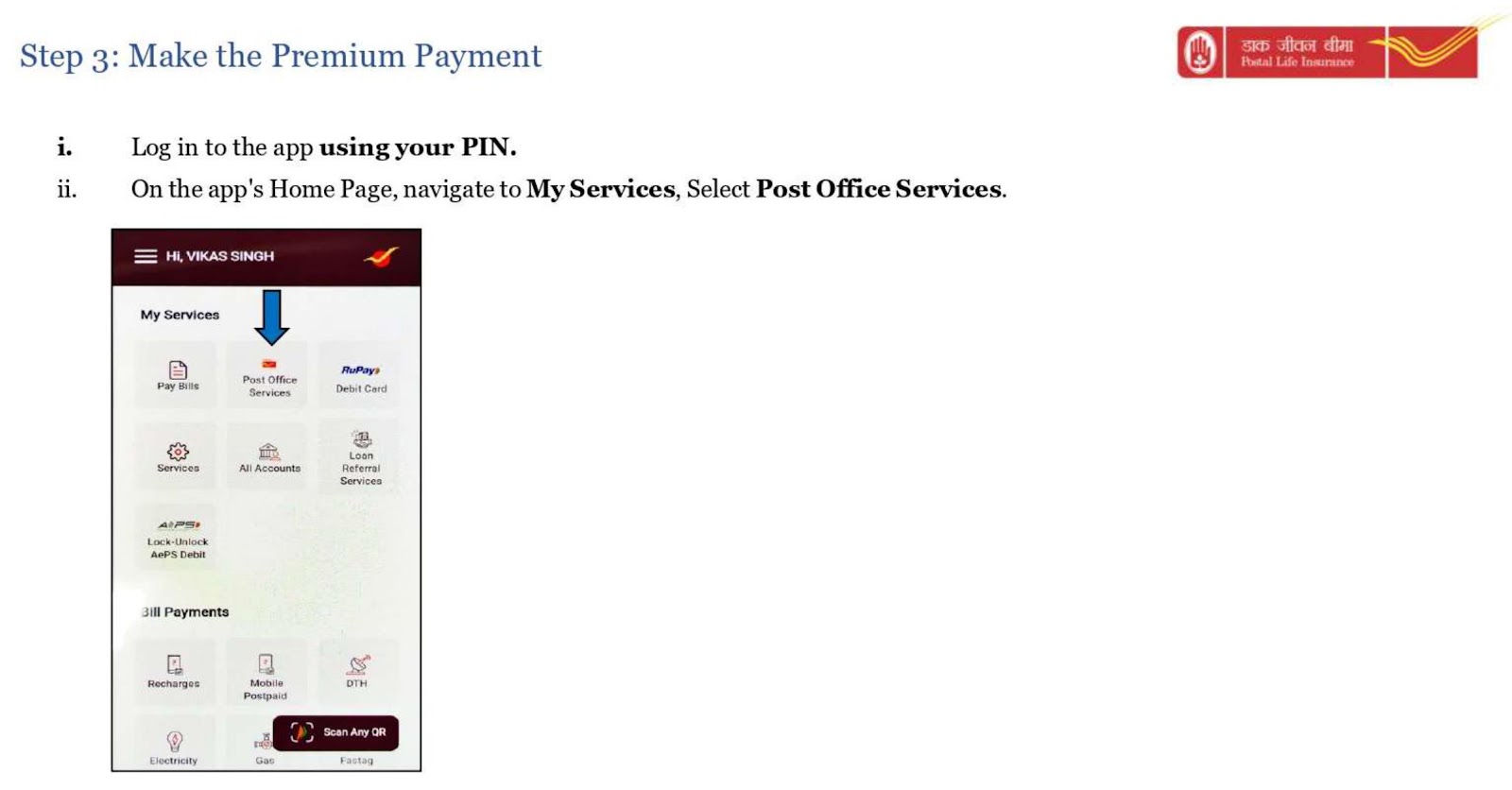
2. Select ‘ My Services’ (
on the home dashboard)
⬇
3. Choose ‘Post Office Services
⬇
4. Select Postal life Insurance

⬇
5. Select Standing Instruction
⬇
6. Enter Policy Details
∙ Policy Number and date of birth
⬇
7.Policy details will be displayed
(verify the detail)
⬇
8. Set SI Start Date and End Date
⬇
9. Confirm and Authorize Transaction

(Verify via MPIN)
⬇
10. SI Auto Debit Setup Successful
⬇
End
Procedure for Online Payment of PLI/RPLI Premium through IPPB APP (Standing Instruction)
1. Under Postal Life Insurance Select Standing instructions
2. Screen will display existing standing instructions (SI) setup by customer (if any) 3. Select “Add Standing Instructions ” at the bottom of the screen.
4. Input Correct Policy No & Date of Birth of Policy Holder.
6. Policy Number, Policy Name, Premium frequency & Premium amount will be displayed.
7. User has to select the SI validity i.e Start date of Standing instructions & end Date of Standing instructions

8. Select the debit date among 4 options i.e For each premium payment customer A/c will be debited on the date so selected (5th of the month or 10th of the month or 15th of Month or 20th of the Month)


9. Select Continue, Application will prompt to select the Debit Account (every time premium will be debited from this account)
10. Select confirm after validating details on confirmation screen.

11. Authenticate using OTP/MPIN
Procedure for Online Payment of PLI/RPLI Premium through IPPB APP (Standing Instruction)
12.SI registration acknowledgement will be displayed. SMS for successful SI registration will be sent to customer post confirmation from PLI systems.

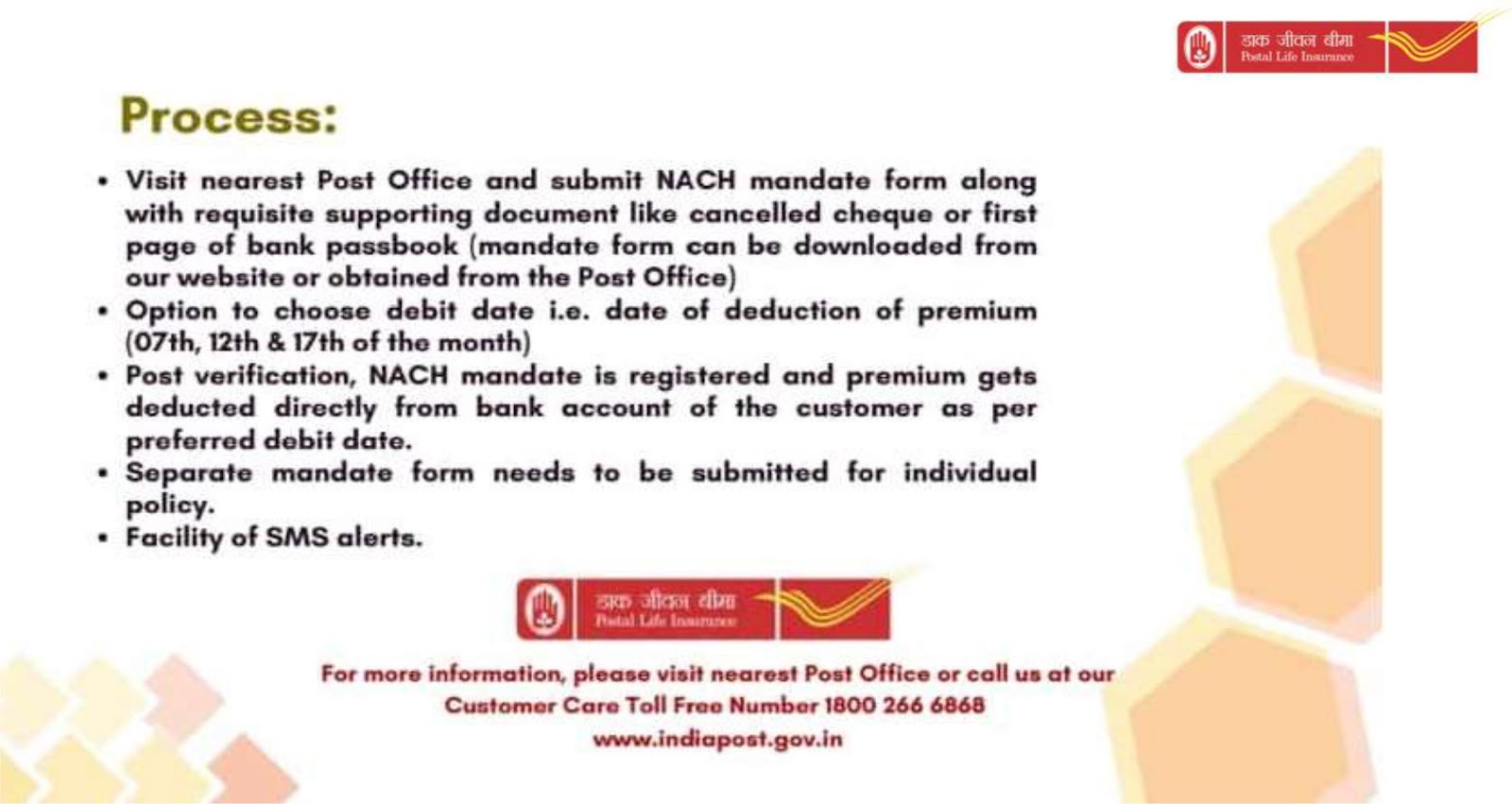
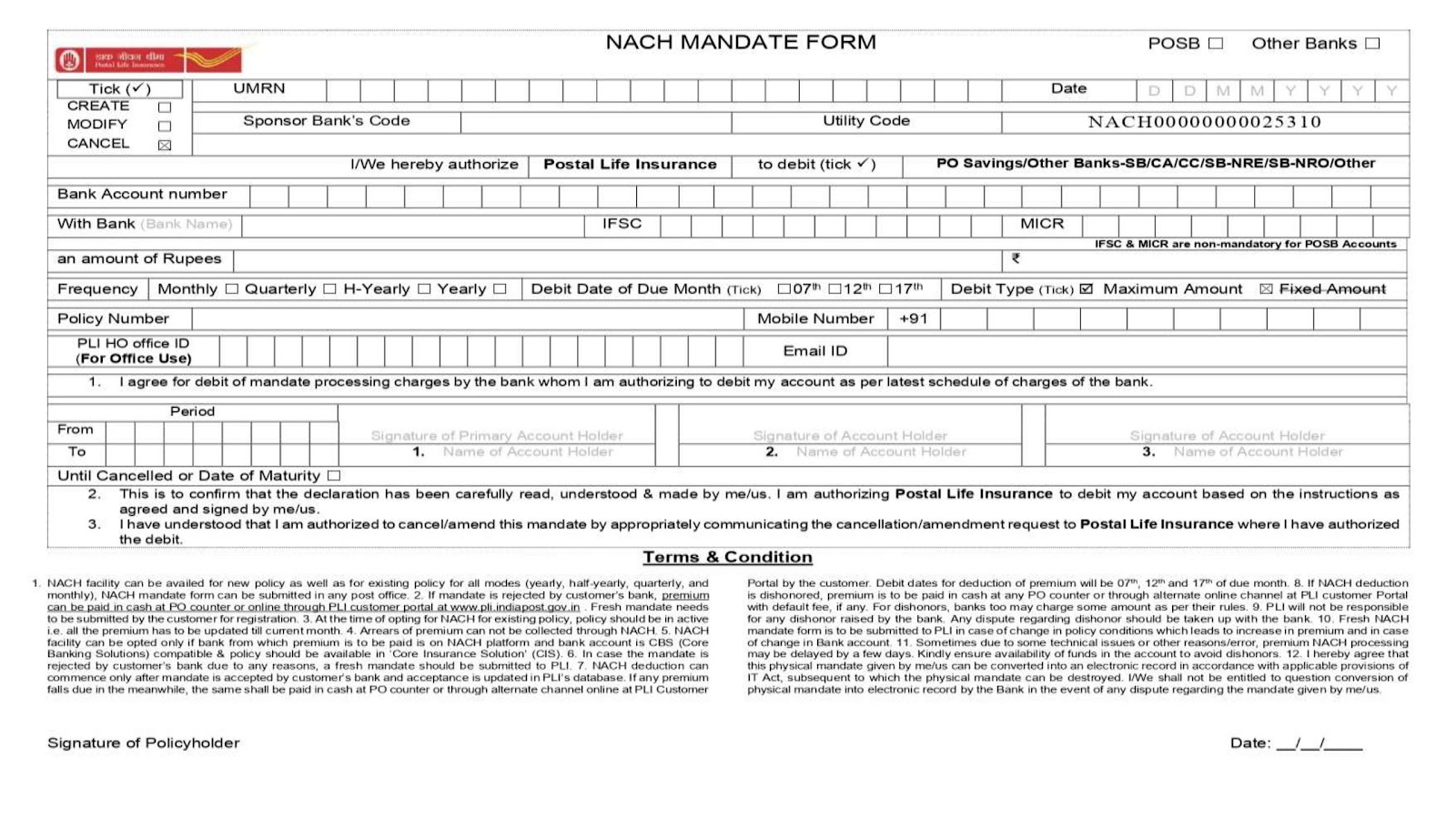
3. NACH mandate through Bank Account
18
19
Procedure for Online Payment of PLI/RPLI Premium 2. Click on Generate Customer ID (Please refer to Screen 2)
3. Fill up all columns like Policy number, Sum Assured, Insured First Name, Date of Birth, Gender etc as available on the POLICY BOND and Click on Submit.
4. After Submitting, the following message will pop-up (Please refer to screen 3 below)

Page 2
Procedure for Online Payment of PLI/RPLI Premium
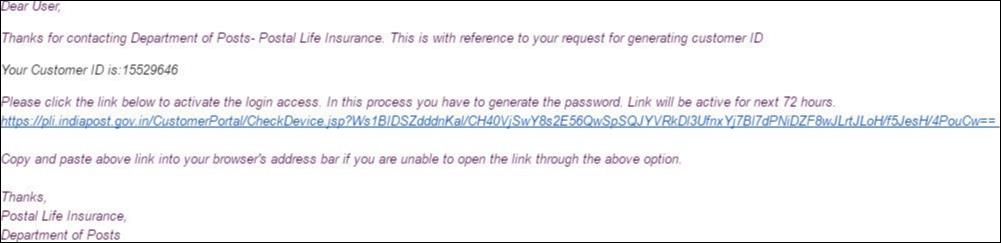
5. Customer ID and Registration Link will be sent to your Email within 24 hours. (Please also make sure checking spam or junk folder). Email (With Customer ID and Registration Link) will be as below. The Link is valid for 72 hours. (Please refer to screen 4 below)

6. After clicking on the registration link, Set Password page will open. (Please refer to screen 5 below)

6.1 Enter a new password on both columns and click on Set Password.
Page 3
Procedure for Online Payment of PLI/RPLI Premium
7. The following message will appear after successful registration. (Please refer to screen 6 below)
Step-3: Login to Customer Portal for Online Premium Payment

1. After 24 hours of setting the password, login to Customer Portal using Customer ID (received via email) and Password. (Please refer to screen 7 below)
Page 4
Procedure for Online Payment of PLI/RPLI Premium

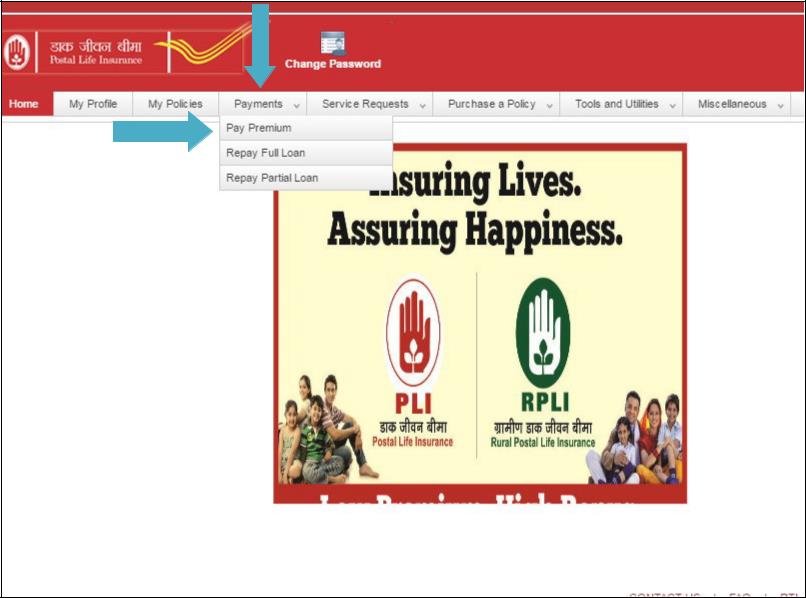
2. Following page will open after Login (i) click on Payments and select Pay Premium. (Please refer to screen 8 below)
3. Select your policy and click on Pay Premium. (Please refer to screen 9 below) Page 5
Procedure for Online Payment of PLI/RPLI Premium

4. Following page will appear after clicking on Pay Premium button, here you can select number of installments for paying premium. (Please refer to screen 10 below)
Click on Confirm Payment after selecting the installments
Page 6
Procedure for Online Payment of PLI/RPLI Premium
5. Confirm total premium amount as number of installments selected and click on PAY NOW (Please refer to screen 11 below)

Page 7
Procedure for Online Payment of PLI/RPLI Premium
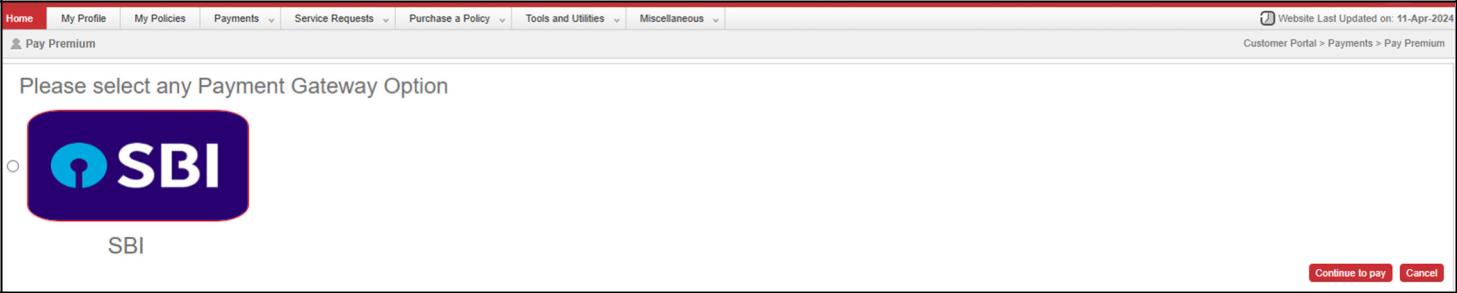
6. The payment Gateway page will appear after clicking on PAY NOW. Select Payment Gateway and click on CONTINUE TO PAY (Please refer to screen 12 below)
7. Payment Gateway page will display different payment options for paying the premium (Please refer to screen 13 below)
8. Select Payment options and proceed with the payment.
9. After successful payment, receipt will be available for download/print. Page 8
Procedure for Online Payment of PLI/RPLI Premium
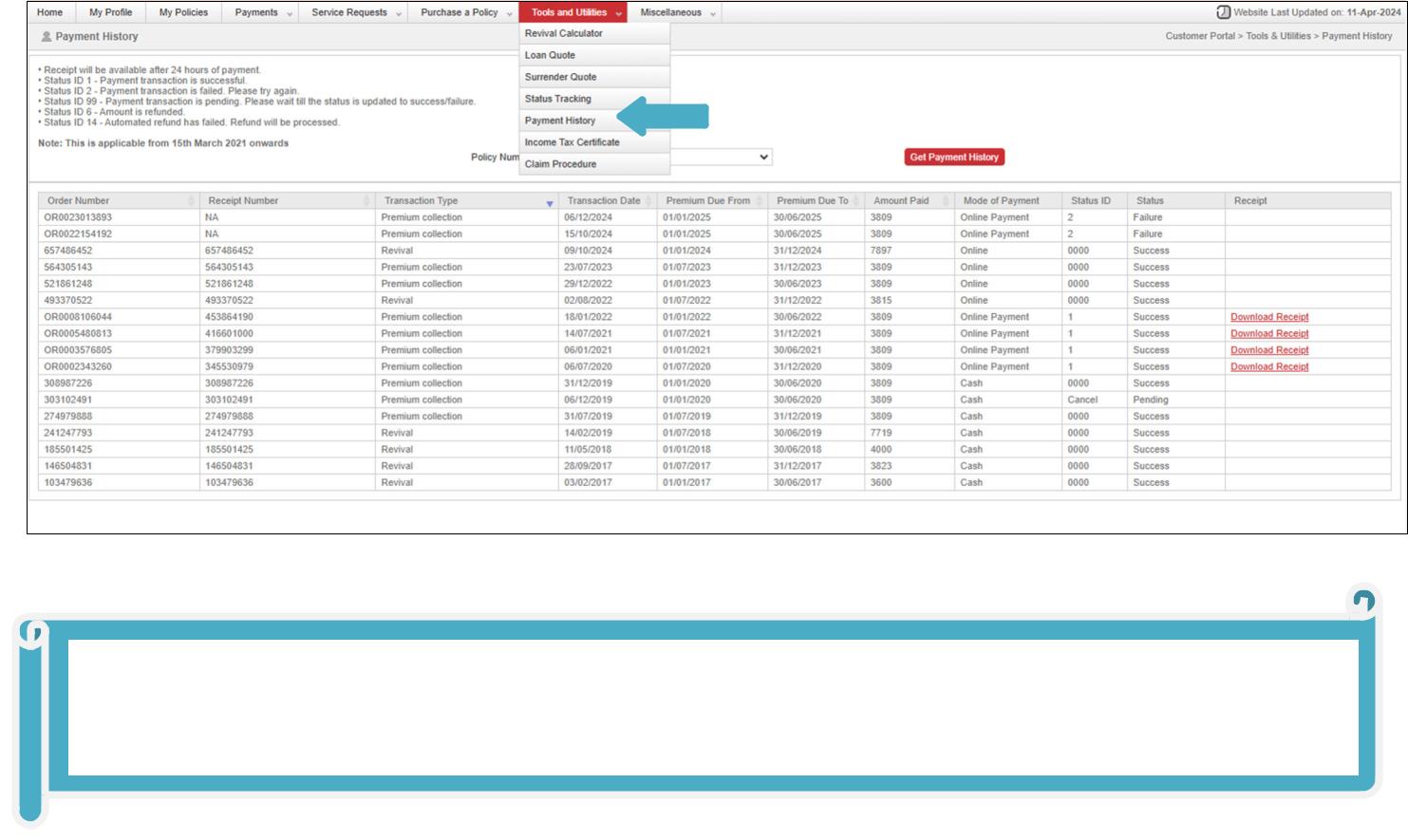
10. The receipt can also be downloaded from ‘Tools and Utilities’ menu of the customer portal. Customer can also view the status of the transaction. (Please refer to screen 14 below).

Note: If the status of the transaction is marked as ‘Pending’ with Status ID=99. Customers are advised to wait for at least 1 hour till the response to the transaction is updated in the Customer Portal.


***End***
Page 9
PROCEDURE TO PAY PLI/RPLI PREMIUM THROUGH INTERNET BANKING OF POSB
Step 4: Select ‘Service Request’ from the left menu under General Services. (Pls see screen 3 below)
Step 5: Select ‘New Requests’ from the drop down-list. (Pls see screen 4 below)
Step 6: Select ‘Pay PLI/RPLI Renewal Premium’ from the request type. (Pls see screen 5 below)


Page 2 of 3
PROCEDURE TO PAY PLI/RPLI PREMIUM THROUGH INTERNET BANKING OF POSB

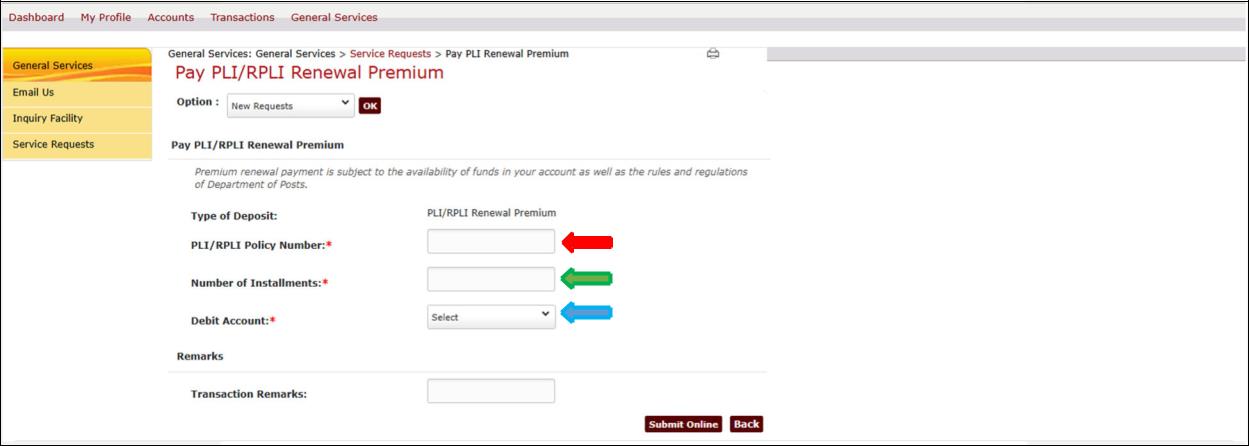
Step 6: Enter ‘Policy Number’, ‘No. of Installments’ and Select ‘Debit Account’ and submit. (Pls see screen 6 below).


Step 7: Review the payment details and Enter ‘Transaction Password’ to complete the payment. (Pls see screen 7 below).


Page 3 of 3
4
5
6
7
8
10
11
12
13
21