
Finacle UBS Internet Explorer Settings
This technical guide specifies the standard Internet Explorer browser settings required for operating Finacle Universal Banking Solution suite applications across versions 10.1.x through 10.6.x and 11.x. It details configuration parameters spanning temporary file caching, privacy, proxy connections, security levels, and browser-specific requirements from Internet Explorer 6.0 SP2 onwards.
- The prescribed settings apply to Finacle UBS installations 10.1.x, 10.2.x, 10.3.x, 10.4.x, 10.5.x, 10.6.x, and 11.x using Internet Explorer version 6.0 SP2 to latest releases, referencing the document Finacle_UBS_Internet_Explorer_Ver8_Dos_and_Donts.doc for version 8 and above browser guidelines.
- Temporary Internet files settings must be set to check for newer versions automatically, with a minimum cache storage size of 50MB, text encoding set to Unicode (UTF-8), and the default language configured as en_us.
- Pop-up blocker must be turned on with the bank URL added to allowed sites, and the Privacy slider must be set to High with the bank domain added under Sites with the Always Allow setting.
- In environments where a proxy server is configured, the bank domain URL must be entered in the Do not use proxy list under LAN Settings in the Connections tab.
- Under the Advanced tab, Use HTTP 1.1, Use JRE xxx under Java(Sun) if available, and Use SSL 3.0 under Security must be selected, while Display notification about every script error must be unchecked.
- Under Local Intranet zone custom security settings, Display Mixed Content under Miscellaneous must be set to Disable.
- For Internet Explorer version 8 and above, User Data Persistence must be enabled, and where organization software hardening is implemented, the buttons Default Level and Reset all zones to default level in the Security tab must be disabled.
- For Internet Explorer version 9 and above, Enable Caret browsing for new windows and tabs and Enable XSS filter must be disabled, the domain must be added to Compatibility View for CRM screens, unsigned and unsafe ActiveX controls must be enabled for SVS signature scanning, and Open Internet Explorer tiles on the desktop must be checked on Windows 8.

Internet Explorer Settings for Finacle UBS

INFOSYS TECHNOLOGIES LIMITED
Bangalore, India
Infosys Technologies Limited, 2015 Page 1
Document Revision History
| Author | Document Version | Reviewed By | Date |
|---|---|---|---|
| Mahantesh N Goture | 0.00a | Anupkumar Murulidhara Putane | April 6, 2009 |
| Mahantesh N Goture | 1.0 | Anupkumar Murulidhara Putane | April 27,2009 |
| Sudarsan K. | 2.0 | December 14, 2009 | |
| Lekha R | 3.0 | December 17, 2009 | |
| Sudarsan K. | 4.0 | December 03, 2010 | |
| Sudarsan K | 5.0 | April 30, 2012 | |
| Sudarsan K | 6.0 | June 20, 2012 | |
| Vimal Damodaran | 7.0 | Sudarsan K | August 7, 2012 |
| Sudarsan_k | 8.0 | August 12, 2013 | |
| Sudarsan_k | 9.0 | December 11, 2014 | |
| Sudarsan_k | 10.0 | May 12, 2015 |
The information contained in this document is subject to change without notice. All software products or brand names are trademarks or registered trademarks of their respective companies or organizations.
1. Introduction
This document explains Internet Explorer settings for Finacle UBS installation 10.1.x, 10.2.x, 10.3.x, 10.4.x, 10.5.x, 10.6.x, 11.x. This document explains Internet Explorer (version IE6.0 SP2 to the latest IE) Settings for applications in Finacle UBS suite.
Pl. refer to “Finacle_UBS_Internet_Explorer_Ver8_Dos_and_Donts.doc” for certain “Do and Don’ts for IE version 8 and above browsers”
2.Finacle UBS Internet Explorer Settings.
Please follow the below Internet Explorer settings for Finacle applications.

Step | Description |
|---|---|
1. | Click on Tools 🡪 Internet Options 🡪 Settings and select automatically radio as shown below figure 1. |
2. | Ensure that cache storage size is minimum 50MB. Please refer Figure 1 (step 1) |

| Step | Description |
|---|---|
3. | Click on the Privacy tab and click the Default Level button. Finacle needs pop-ups facility to be enabled. Our recommendation is to enable Block pop-ups (or Turn on Popup Blocker) as shown in the below figure 2 and add *<bank domain name> to Allowed sites list as shown in the below figure 3. Figure 2 Figure 2 |

Step | Description |
|---|---|
 Figure 3 |
Step | Description |
|---|---|
4. | Please set the below Privacy settings. Move the slider bar up set to High (please refer Figure 4) 1. Click on Sites. 2. Type *.<domain name> in the Address of Web site box. Example : bankdomain.com 3. Click on Allow and make sure you see *.<domain name> with the Always Allow setting in the Managed Web Sites box as shown in figure 5.  Figure 4 |

Step | Description |
|---|---|
 Figure 5 |
Step | Description |
|---|---|
5. | Please perform this step only when Proxy server is configured. Click on the Connections tab and LAN Settings. If proxy is enabled, then add entry for *.<domain name> in “Do not use proxy” box. Please specify the bank URL here example *.bankdomain.com. Please refer below figure 6. 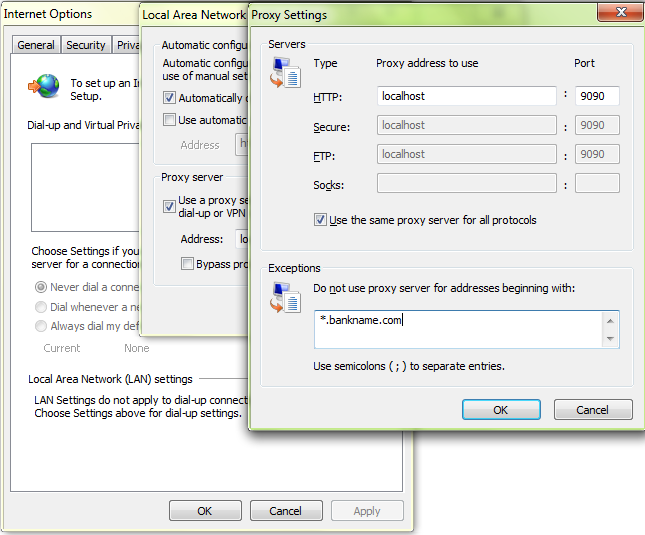 Figure 6 Figure 6 |
Step | Description |
|---|---|
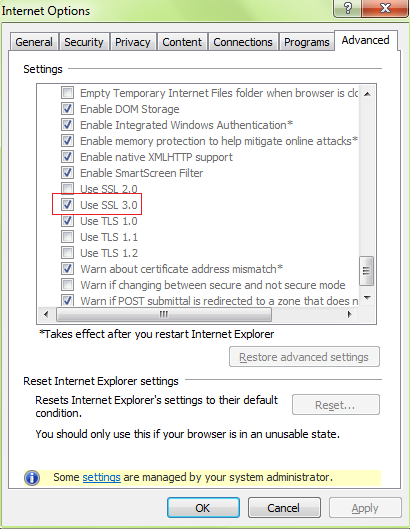
6. | Click on Advanced tab and select the following settings (if already not selected) 1. “Use HTTP 1.1” setting under HTTP 1.1 settings (please refer figure 7 below) 2. “Use JRE xxx” under Java(Sun) (If available) 3. “Use SSL 3.0” under Security. Please refer figure 8.  Figure 7 |
Step | Description | |
|---|---|---|
7. |  |
Step | Description |
|---|---|
8. | Locale settings in browser: Click on Tools 🡪 Internet Options 🡪 Languages … The default language must be en_us as shown below figure 9. ettings Guide 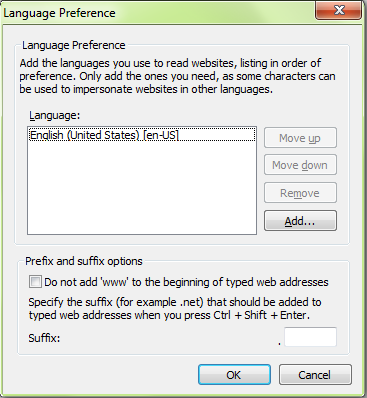 Figure 9 Figure 9 |

Step | Description | |
|---|---|---|
9. | Go to Tools 🡪 Internet Options 🡪 Security 🡪 Local Internet 🡪 Custom Level 🡪 Miscellaneous 🡪 Display Mixed Content 🡪 Disable should be checked as shown below figure 10.  |
Step | Description |
|---|---|
10. | Go to Tools> Internet Options > > Advanced > Browsing> Display notification about every script error – Should be unchecked (not sure about default value) as shown below figure 11.  Figure 11 Figure 11 |
11. | Click on Apply and then OK. |
Step | Description | |
|---|---|---|
12. | Click on View 🡪 Encoding and select Unicode (UTF-8) as shown in the below figure 12.  |
Step | Description |
|---|---|
13. | For IE browsers version 8 and above, do the following setting. Tools > Internet Options >Security > Internet/Local Intranet Zone > Custom Level > Settings > User Data Persistence > Enable the setting. figure 13a & 13b.
|

 Figure 13a, 13b.
Step | Description |
|---|---|
14. | 14.If the above mentioned settings are already done as part of the organization’s software hardening process, make sure of the following is done specifically for IE versions above 8.0. Go to Tools > Internet Options > Security tab, the buttons “Default Level” and “Reset all zones to default level” should be disabled as shown in the below figure 14. Figure 14 |


Step | Description |
|---|---|
15. | The below mentioned setting applicable to IE9 and above. Users should not be allowed to enable this setting or it should be done as part of organisation’s software hardening process. Go to Tools->Internet Options->Advanced tab, under ”Accessibility” section “Enable Caret browsing for new windows and tabs” should be disabled as shown below in figure 15.  Figure 15 Figure 15 |
Step | Description |
|---|---|
16. | The below mentioned setting applicable to IE9 and above. This is required for CRM screens to come up. Go to Tools-> Compatibility Settings. Add the current domain or check on “Display intranet sites in Compatibility View” check-box as shown in Figure 16.  Figure 16 |
Step | Description |
|---|---|
17. | The below mentioned 2 steps are required in case of scanning signature in SVS application needs to be done. Click on “Custom Level…” button from Figure2 -> Go to “ActiveX controls and plug-ins” sub-title (refer Figure 3)  Figure 17 |
Step | Description |
|---|---|
18. | Mark the highlighted settings as “enabled” 1. Download unsigned ActiveX controls 2. Initialize and script ActiveX controls not marked as safe for scripting  Figure 18 |
Step | Description |
|---|---|
19. | Below setting is required from IE9 onwards. Mark the highlighted settings as “disabled” under Security > custom settings 1. Enable XSS filter  Figure 19 |
Step | Description |
|---|---|
20. | Below setting is required in Win8 desktop. Check box "Open Internet Explorer tiles on the desktop" to be checked.  Figure 20 |